Formatting a computer is not a hard task. All you need is a slight knowledge of how to set up your Bios. Why we want to learn to format our computer? There are several advantages which are :
1)Save money
Formatting a computer may cost USD 15-USD 50.
2)Save time
You only need 30-90 minutes depend on your computer performance where else you need 1-2 days if you send to shop. Some may even have to wait for 1-2 weeks.
3)Extra knowledge
Formatting a computer is the basic knowledge.
First you need to do is to change your Bios's setting.
How you do that? Well, it is very easy.. As soon as you on your computer, you need to press and hold either "delete" or "F1" or "F10" or "Tab" or "ESC" button depend on the brand of your computer. But normally it is "delete" button.
How i know what button to press?
Ok, as soon as you On your computer, you will see a display that tell you what button that u need to press to enter into the Bios.
Here is some of the brand and button that need to press:
Acer - Ctrl+Alt+Esc
Compaq - F10
Compaq Presario - Press at boot when you see the "Compaq" log in big letters
Dell - F1 or Del.
Gateway 2000 - F1, many also use F2
Hewlett Packard - F1
IBM* Older Models - In order to get into the configuration of the IBM setup screen (CMOS) screen you need to hold down both mouse buttons during boot-up.
* Aptiva - Press F1
* Fortiva 5000 - "Cntrl"+"Alt"+"A" or "Cntrl"+"Alt"+"S"
NEC - F2
Packard Bell - F1 or F2
Sharp Laptop 9020 - F2
Sony - F3, then F2, or F1
Tandon computers - Hold down the key after turning on power
Toshiba Laptops - Toshiba Utility, on selected models you can hold the ESC key during boot which will then prompt you to press the F1 key to enter the BIOS.
After you successful entering into the Bios, you need set the FirstBoot to CD-ROM.
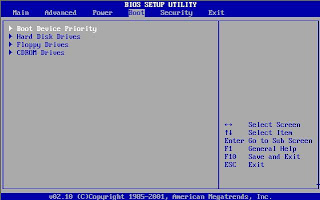
This is to enable your computer to boot from your CD in stead of your hard disc.
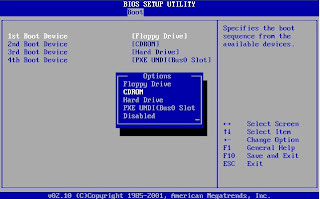
After that, exit the Bios and reboot your computer.
After reboot your computer, you will see this :
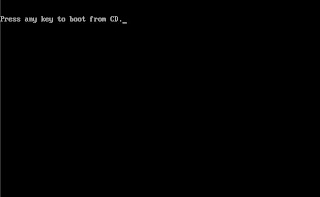 So press any key to boot from your CD...

Then the setup will start to inspect your computer's hardware configuration.
All you need to do is to wait...
 After that, Windows will start to load important files...


After the file is loaded, you need to choose whether to repair your previous windows or continue setup a new windows in your computer...so press "Enter" to continue...

After that you have to press "F8" to agree with the End-User License Agreement to continue your installation...

Before you install your windows, you need to choose which drive to install your windows. You can either delete your partition and create a new partition for your windows or install into your previous Operating System's location which normally is C drive.

Then, use can choose to format your desire location either using NTFS or FAT file system..
What is NTFS and FAT?
NTFS is the standard file system of Windows NT, including its later versions Windows 2000, Windows XP, Windows Server 2003, Windows Server 2008, and Windows Vista. NTFS has several improvements over FAT. To know more, you can visit this website
After choose the type of file syatem, then you can either choose Quick format or normal format. For me, i will choose quick NTFS...

After that, setup will start to format your computer and you will lose all your previous data..

After formatting, Setup will start to copy the files that need for the installation of your windows.

Your computer will reboot after all the files is copied..
After reboot, you'll see this screen again...
But this time, don't press any key. This time, we don't want to boot from CD.
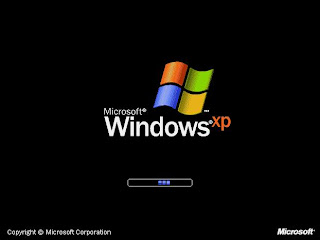
The setup will start to install Windows XP in your computer. The installation will took around 40 minutes depend on your computer's performance.
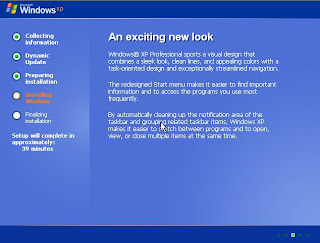
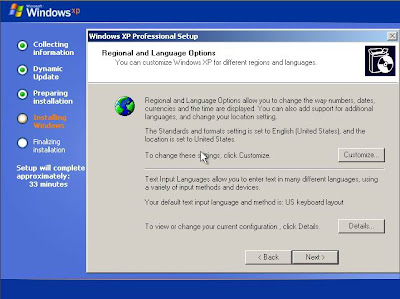
During installation, you need to choose the input language for your system.
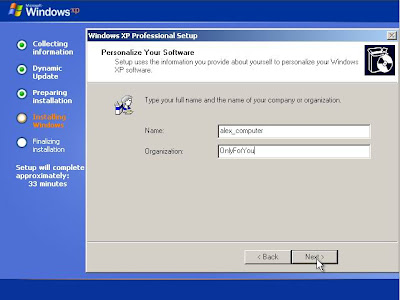
After that, you have enter your name and your organization.
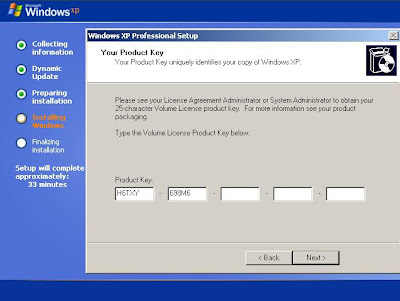
Then, you have to enter the Product Key. You can find your product key on the Certificate of Authenticity.
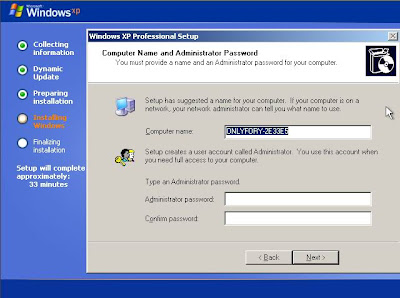
After that, you can enter your computer's name and as well as your password.
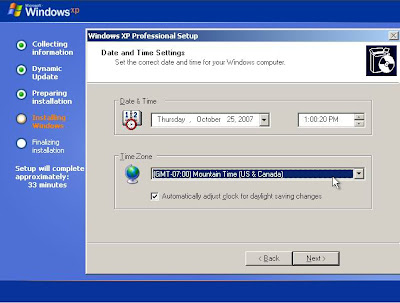
Then, select your time according to your time zone. Your installation will continue.
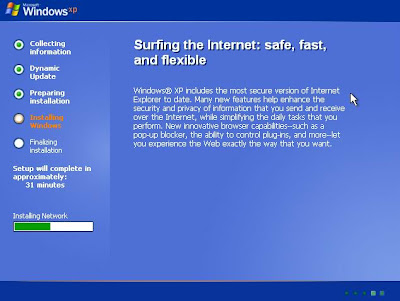
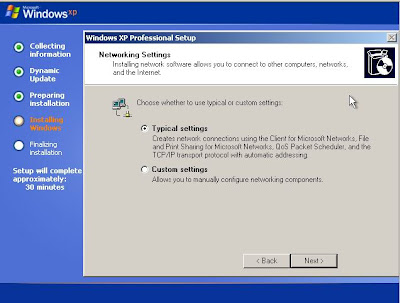
You have to choose your network setting for system. If your don't have any knowledge regarding networking, do choose typical setting like i do. Then, the installation will continue and reboot by itself after finalizing installation.
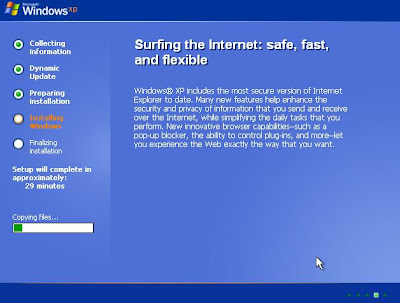
You will see this screen 1 more time.
Don't press any key.
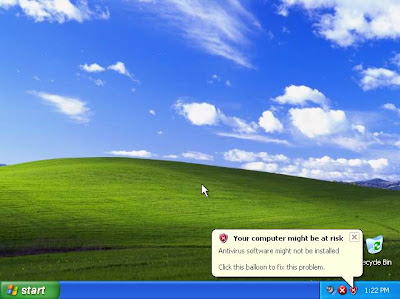
So, you have successfully format and install your computer with Microsoft Windows XP. The process continue with windows activation, driver installation, anti-virus installation and so on.
The End
Related :
Driver Installation


